How do I get a copy of my Receipt?
Receipts are generated and sent to your account's email address upon purchase. If you need additional copies of a receipt, please follow these steps:
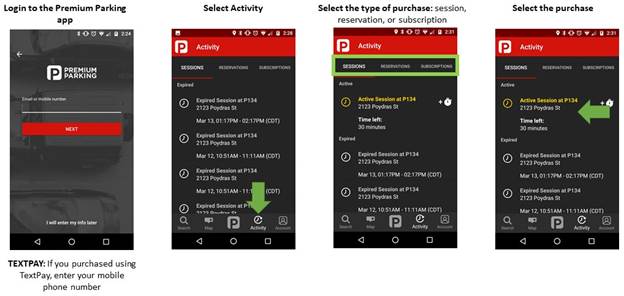
- Login to the Premium Parking app.
- Select History.
- Select the type of purchase: session, reservation, or subscription.
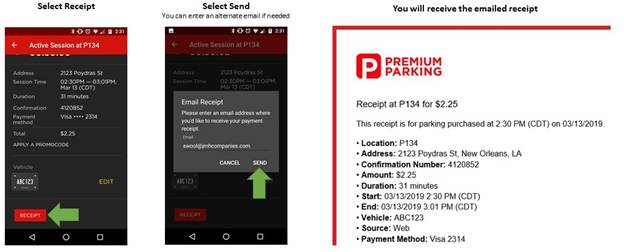
- Select Send (If you are logged in using a mobile number, you must enter your email before sending)
Notes
- If you cannot find your receipt after following these steps, please try logging in with your mobile number. Receipts are accessible only by the account that created the transaction, which might be your mobile number if you used TextPay.
- If you purchased your parking session from a machine at a Premium Parking lot or garage, please contact Premium Parking’s Customer Support by phone (1-844-236-2011) or by email (support@premiumparking.com), and they will send you a copy of your receipt by email.
- If you do not see your Premium Parking receipt in your inbox, please check your Trash or SPAM folder.
- Third party reservations (ex: Spot Hero) receipts must be requested from the company you purchased from
- If you are logged in using a mobile number, you must enter your email before sending the receipt
How do I Add/Edit/Delete License Plates?
Vehicles List
Your Premium Parking profile has a vehicle list where you can save license plates for your various vehicles to reference quickly when you purchase a parking session, reservation or subscription.
Note
Please make sure to enter your vehicle license plate number as it appears on the back of your vehicle. Premium Parking verifies the validity of any vehicle that enters a Premium Parking lot or garage using the rear mounted license plate only.
To add a vehicle to your Vehicles list, follow these steps.
Premium Parking Website
- Navigate to www.premiumparking.com
- Sign In using your email address or phone number and your password.
- Click “Vehicles.”
- Click the “ADD VEHICLE” button.
- Enter your vehicle license plate number as it appears on the back of your vehicle. Do not include the state abbreviation.
- Enter the state where your vehicle is registered.
- Optionally, you may enter the Make, Vehicle Type (Coupe, Sedan, SUV, etc.), Color, and a name for your vehicle.
- Once you verify the information is correct, click “SAVE AND CONTINUE.”
Once you add a license plate into your vehicle list, the license plate number cannot be changed. You must remove from the list by clicking Option > Delete Vehicle. From there you may add the correct license plate number using the steps above.
Premium Parking App
- Open the Premium Parking App on your smartphone.
- Tap the Account icon at the bottom right corner.
- Tap “Provide Vehicle License Plate.”
- Tap the “+” button at the top right corner.
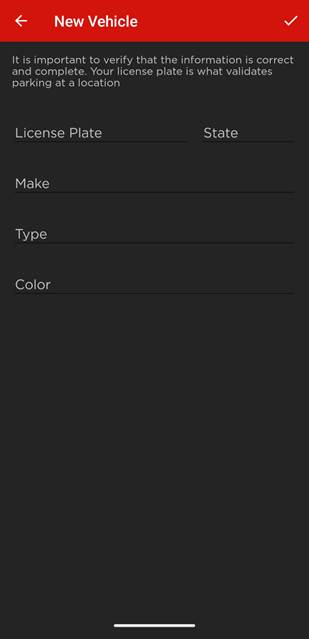
- Enter your vehicle details.
- Once you are done, tap the ✔️ (check mark) at the top right corner to save the vehicle.
Note
If you have a parking subscription, vehicles you add to your vehicle list are not automatically added to your parking subscription. You must assign the vehicle to your subscription for it to be valid to park at your assigned location.
Subscriptions
There may be situations where you may need to update the license plate number on your parking subscription, such as when you get a new car, need to borrow a vehicle, or you have a loaner or rental vehicle.
Updating your vehicle license plate is quick and instant. Please use the following instructions to update your license plate on your parking subscription.
Premium Parking Website
- Navigate to www.premiumparking.com
- Sign In using your email address and password.
- Click "Manage Account."
- Click "Subscriptions" on the left side of screen.
- Click "Change" next to license plates.
- Add or delete the license plate you would like.
- Click Save.
Premium Parking App
- Open Premium Parking App.
- Sign in using your email and password.
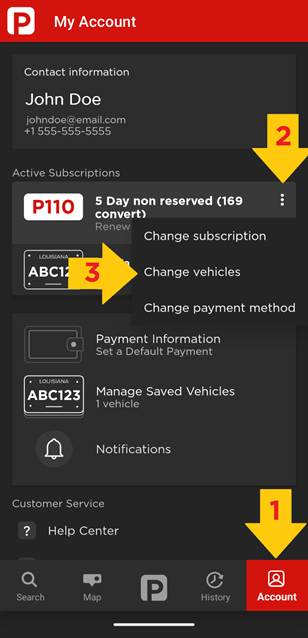
- Tap the "Account” Icon.
- Under Active Subscriptions, tap the 3 dots next to the subscription you want to update.
- Tap Change vehicles.
- Tap the "+" in top right. Enter your vehicle details. Tap the ✔️ icon at the top right when you are done. Your license plate will appear in your parking subscription vehicle list.
Note
- While you are allowed up to 3 license plates on your parking subscription, you may park only 1 vehicle at the parking location at a time.
- If you want to park 2 or more vehicles from your subscription at the parking lot or garage at the same time, you must pay for parking for each subsequent vehicle after the first one entered the parking lot or garage.
- If you wish to park multiple vehicles from the same subscription at the same time on an ongoing basis, you must pay for parking upon arrival or purchase individual subscriptions for each subsequent vehicle.
How do I add a Payment Method?
If you need to add payment methods to your profile, follow these instructions.
Premium Parking App
- Log in using the email address or phone number.
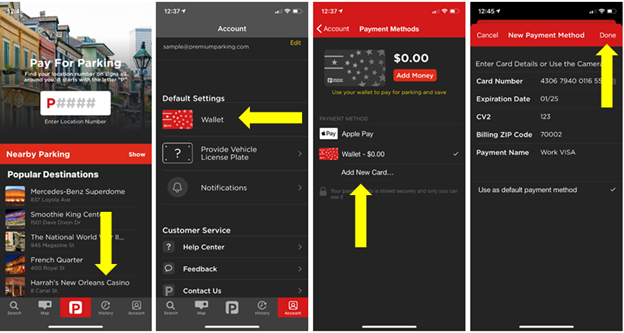
- Click "Account" at the bottom right corner.
- Scroll down to "Default Settings" click payment option or "Wallet"
- NOTE: any NEW profile is unable to use the "wallet" feature. Existing profiles are still able to use the wallet as normal.
- Click "Add New Card" and add all information.
- Click "Done."
Premium Parking Website
- Log in using the email address or phone number.
- Click "Payment Methods" on left side of screen.
- Click "Add Payment Method" and enter payment information.
- Click "Save.”
What is a Premium Parking Wallet?
The Premium Parking wallet is a form of credit that can be used to purchase parking at our locations using the app or website.
How to use wallet funds
Premium Parking App
- Open Premium Parking App
- Locate desired parking location
- Click "Start Parking" or "Pay for Parking Now"
- Select "Space Type" (if available)
- Select Parking Duration
- Enter Vehicle Information/License Plate
Your wallet credit will automatically apply to your parking purchase.
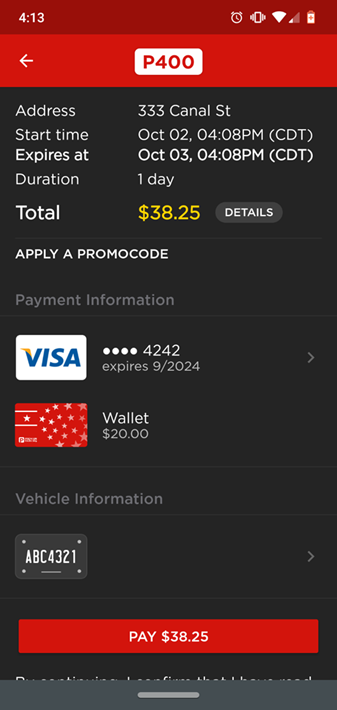
If you do not want the credit to apply, you can remove it by:
- Selecting your payment method
- Selecting "Remove Wallet Credit"
Premium Parking Website
- Open www.premiumparking.com
- Locate desired parking location
- Click "Start Parking" or "Pay to Park Now"
- Select number of hours
- Enter Vehicle Information/License Plate
- Click "Start Parking"
Your wallet credit will automatically apply to your parking purchase.
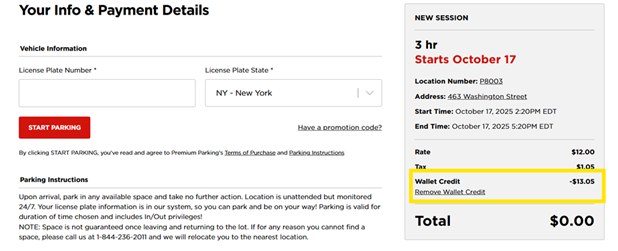
If you do not want the credit to apply, you can remove it by selecting the "Remove Wallet Credit" link
Note
- If your purchase exceeds your wallet balance, the default payment method will be charged the remaining cost. You can specify a different card by selecting it during the checkout process.
- Wallet credit redemption is NOT available through TextPay. You must use the credit using the app or website.
How to add wallet fund
Premium Parking App
- Select Account
- Select your payment method
- Select Add money
- Set the amount you want to add to the wallet
- Set or select the payment method that will be used to fund the wallet
- Select "Add $"
Premium Parking Website
- Sign in www.premiumparking.com
- Select Payment Methods
- Select Refill Balance
- Set the amount you want to add to the wallet
- Set or select the payment method that will be used to fund the wallet
- Select Refill
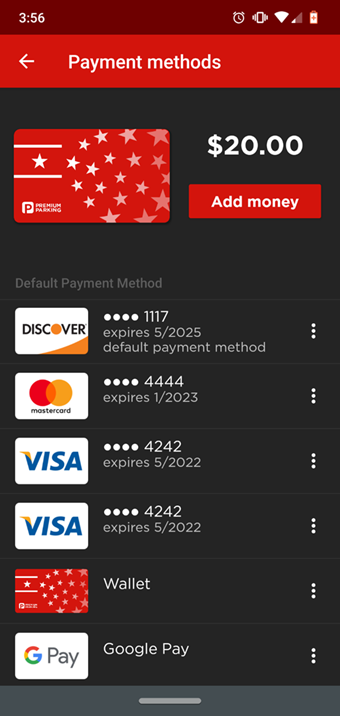
How to check your wallet balance
Premium Parking App
- Select Account
- Select your payment method
- Your wallet balance is displayed at the top
Premium Parking Website
- Sign in www.premiumparking.com
- Select Payment Methods

How to change profile password?
Premium Parking Website
- Navigate to premiumparking.com and sign into your profile using your email address or phone number, and your current password.
- Click “Settings.”
- Under “Account Information,” click "Change Your Password.”
- Enter your current password.
- Enter your new password.
- Confirm your new password by typing it in the next field.
- Click “Save Changes” when you are done. Note that if your new password and the confirm password field do not match, your password will not be saved.
If you are unable to sign into your Premium Parking profile, you can reset your password.